Almost a year ago I described our date search capability (using the date search). The post was prompted by a question from one of our clients. Soon after it went live I received an email from Professor Matt Ege at TAMU who wondered about the misspelling of Arthur Andersen (I spelled ANDERSON). If you are a loyal follower you know I am grammatically challenged (their versus there). My excuse is I have one brain cell and as I am writing these posts I am thinking about something else I have to do. The truth of the matter is I misspelled their name but had results.
Fast forward to today. After the original request for strategies related to identifying auditors we received another set of related questions in January and then I again in March. At that point we had been working on a new tagging strategy for some time and it just seemed to me that we should tag the 10-K with the auditor.
This morning Manish Pokhrel (who is our data guru/manager) sent me a compilation of some examples he has found during this process.
Deloitte’s signature was in error in Dime Bancorp’s 10-K filed in 2015 (10-K Filing):
Another example of Arthur Andersen’s signature with an o from Green Mountain Power’s 2001 10-K (10-K):KPMG had a name mishap in the 10-K filed by Heritage Financial Corporation in 2002 (10-K)
Just concentrating on the ANDERSON case – there are 511 10-K filings with that spelling (in many cases the spelling is not attached to the audit report)
All of that is interesting (maybe only to me). However, Manish has made significant progress on collecting and normalizing the name of the auditor for all of the 10-Ks. While we intend to tag this information into the 10-K as additional metadata – that is another step that will take some time.
To make this information available to you sooner we are going to create a new data artifact in the next couple of weeks – AUDITOR. We will have the balance sheet date, (CDATE), the auditor name, the date of the report and the office location (CITY/STATE (or COUNTRY for non-US offices). You will request it like all of our artifacts – CIK – DATE pairs in a request file. This is a small artifact but it is cumbersome to adjust size limits per-artifact so we will still have a 20,000 CIK-YEAR pair limit PER request file.
I will provide more details – but if you have a research question where you wanted to search for disclosures by auditor – the auditor data result file will merge trivially with the search result file because of all of the other metadata (CIK-RDATE-CDATE-FVAL). This is imperfect but the matching will be easy.
If not before I hope to push this out over Thanksgiving weekend.
One of my current projects is to identify committee members for a large set of accelerated filers. I have looked at adding this as a data item to our platform but we have too many other issues that have a higher priority. However, I need this data for one of my own research projects. One of the special challenges is the lack of uniform disclosure practices.
A growing number of registrants are providing a tabular disclosure of the committee assignments of their board. When we can snip these tables from the documents then the committee assignments are pretty easy to merge with director compensation data available through the platform. For example – here is the summary of the committees as reported in Air Products & Chemicals 2016 DEF 14A (CIK 2969) (we snipped the table so the view is in the SmartBrowser):
Air Products & Chemicals 2016 Committee Membership Disclosure
Here is how the director compensation data from the same proxy filing looks when pulled from directEDGAR:
Air Products & Chemicals 2016 Director Compensation Data
Notice that the names are the same form, this is not always the case but our experience is that registrants maintain significant internal consistency in how they name their directors across multiple tables. Because the table that has the committee composition has ASCII characters we can Dehydrate/Rehydrate and normalize the disclosure:
Normalized Committee Data
We can then merge the committee data with the compensation data! Everything above can be created from directEDGAR. It gets more challenging when we identify tables that do not have ASCII values as the indicators. For example, here is the committee disclosure for ABBOTT LABS (CIK 1800):
Abbott Labs Committee Disclosure (2016)
The M and the C are image files. It looks really nice but it is hard to collect data from this table because when the table is snipped the image is gone. Here is an image of the table after it has been snipped:
ABBOTT LABS – Committee table after snipping
The ALT TEXT for the image is something called GRAPHIC. And to add insult to injury the ALT TEXT for the image for both CHAIR and MEMBERS are the same. If we DEHYDRATE/REHYDRATE tables like this – we will have the column headings, the names and the meeting frequency. We will not have values for the committee assignments. We can fix that using Python. We can convert this table to:
ABBOTT LABS – Committee after some Python magic!
Once the table has been converted into this form, the Dehydrator/Rehydrator processes allows conversion of the table into more useful data.
In addition to cases where I found images in the table, I also found cases where the registrant is using special (non-ASCII) symbols (check-marks, check-boxes, bullets . . .) to indicate committee membership.
Committee Table for CIK 49196 (Huntington Bancshares)
I needed a solution to conform the tables with images and non-ASCII characters because I really don’t want my research assistant doing work that can be automated. While I am still scoping out this work I think we are seeing about 400 of these per-year in our sample and with about ten years of data that is approximately 4,000 cases of asking someone to manually review these tables and enter the committee details into a spreadsheet. Not only do I not want to ask someone to do this work, I don’t want to manage it. I suspect you don’t either.
I came up with a solution and I started thinking about our mission – to reduce the effort you spend collecting data from EDGAR filings. We need to share this code. I know many of our clients use our search platform to find relevant filings and then download filings to work their own Python magic. I don’t see any reason why you should have to sort out a solution if we have one that we are using either in-production or in our own work.
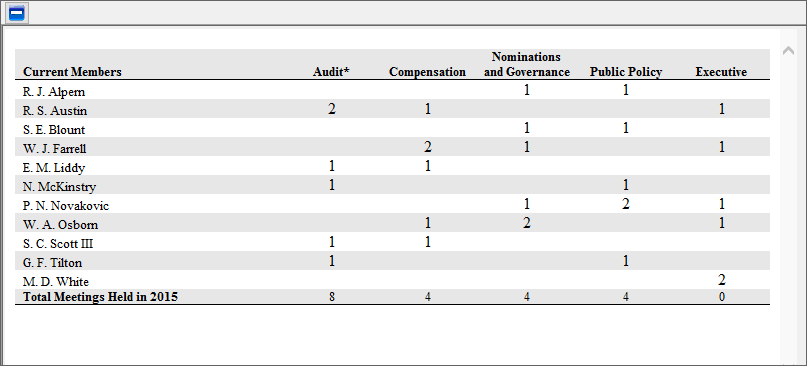
In my solution I have not tried to map the images or special characters to their meaning based on a key to the table or even a translation of their meaning. Instead I am making an assumption that the frequency of the image/symbol has meaning. We are simply identifying the unique symbols/image and replacing them with an integer. The integer has no meaning other than the order in which they were found. My assumption is that there will be fewer symbols for chairs than for members. In the image above the members are indicated by “1” and the chairs by a “2”. If Mr. Alpern was the chair of the Nominations and Governance committee then the values would be reversed. We can identify frequency in the next step and work with the data to normalize if more.
Sometimes this is not enough. There are registrants who use a different image for each director/role. If Burch Kealey is a member of the compensation committee – there is one image for that and a different image to represent his membership in the audit committee and then a third image that conveys that he is the chair of the finance committee. In this case there might be 20+ different integers in the results. There is nothing we can do about this choice and so for those we have to go back to the source document to sort out the committee membership.
If you are using our platform and also augmenting our tools with Python – I want to make this type of code available so you can focus on data collection. Sometime in the next six months I would like to set something up on BitBucket so we can share useful code in a more structured way. I don’t have time to sort all of the intricacies of that solution but I have an intermediate solution. The intermediate solution is that I have created a folder on our platform (on the S:\ drive) called AvailableCode. Inside the folder I will save zipped folders that will have some commented code and some example input files that can be transformed with the code.
While I intend to provide comments in the code – my comments will be focused more on identifying the entry and exit points and how you might need to expand the code rather than necessarily fully ‘teaching’ Python.
Code can always be improved. One of the challenges is that there are choices that registrants make when preparing their files. We often don’t learn of the choices until we run the code against a set of new files and get an unexpected result. The code I will make available makes adjustments only for the cases I have seen while working on a particular set of files. For example, below are the binary representations of the various special symbols I have found in these committee tables for my sample.
If you use this code you may find tables with another symbol that was used to indicate committee membership or leadership. If you do then it is just necessary to add that symbol to the set of process_symbols and the code will then correct for that symbol. It would be great if you would share with us new symbols so we can add them to the code as well. Similarly, so far we have identified WingDings and WebDings as challenging fonts to process. There might be others. You will identify the existence of others if you are using this code on a different collection of tables and after processing you find something like the image from Abbott Labs after processing, something non-intelligible. Look at the html and it should not be difficult to identify the problem. If you are brand new at working with Python in this manner – send the table to support@ . . . and we will help you learn how to modify the code to accommodate this issue.
That brings me to my final point. If you have been thinking about learning Python to help your data collection – I think you will find this helpful. To get started I would suggest installing PyCharm. While they offer a free academic license – if you get comfortable using it – the professional license is reasonably priced and we know that nothing is really free. In addition – while Google is a great resource – to be effective using Python at some point you are going to want to understand the code – if I were trying to learn Python today I would pick tutorials/course from RealPython. The pricing seems reasonable and their organization and scope of coverage looks like it maps into what I think an academic researcher might want to learn. The code I am making available first requires we find, open and read files. You can easily look at the code and intuit what is going on. To understand the options available though I suspect this 30 minute course/lesson would be useful Reading and Writing Files. What I like about their material is that I can approach it with a question in my mind – search for relevant material based on my question and then pick through the options. When I first started (and to this day) I try to break my tasks down to the smallest steps and then Google for information. My first real line of Python was to open a file – so I search for “How to open a file in Python”.
One of the next posts I make will describe how to use Python to clean the noise from tables we have snipped. It is really challenging to snip committee tables – so I used the TableSnipper to snip a set of tables based on some gross characteristics of the tables and then I wrote some additional code to clean up the noise from those results – again to save my research assistant from having to trudge through a lot of unnecessary tables. I need to clean up the code a bit more. When I have finished cleaning the code so it can be useful for filtering a more generic set of tables I will add it to the folder on the platform.
Final note – to use the example bundles from S:\ navigate to the S drive on the platform. Open the AvailableCode folder and identify the zip folder you want to copy. For security reasons, when you select the folder and right-click with your mouse you will get a warning message:
Warning Message
Even though you are not opening the zip file – that message will appear. Click OK. The then right-click context menu will be available. Note – you cannot extract the contents on S as you don’t have write privileges. You can copy and then paste to the Temporary Files folder.
Once they are in that folder you can download them to your computer (review the download steps in this video at about 3:50 Accessing Files ). If you have Python installed you should only need to change the paths to then run the file and see the transformation. You can use the same code to transform your own files as needed. I should note that I am running Python 3.9 and I am using LXML directly (not through BeautifulSoup).
A colleague of mine at the University of Nebraska at Omaha needs Say-On-Pay vote results. The disclosure of these votes is relatively structured. This will allow us to write some Python code to extract and normalize the results for a large number from the filings. However, there are significantly diminishing returns to writing code to get every last one. For those that the code writing effort is too bothersome we will have our RA (a very diligent graduate student) review the documents and transcribe the data. We try to be conscious of the tedium of this type of work and reduce as many steps as we can. Our SmartBrowser offers an efficient way to review the relevant documents so she can focus on the data collection rather than making too many mouse-clicks.
The first step of this process is to extract the relevant documents from the platform. Below is an image of the results of the first search for this sample.
Searching for Say-on-Pay Votes
The search string was (DOCTYPE contains(8K*)) and (ITEM_5.07 contains(YES)) and compensation. The first parameter limits the search to 8-K or 8-K/A since we have not seen many results where the disclosure is in an exhibit. The second parameter limits the search to ITEM 5.07 as that is the item code for Submission of Matters to a Vote of Security Holders. The final parameter is to make sure that the word compensation is mentioned in the document. Clearly this is not a perfect search – it provides us a place to get started.
We want to extract the actual 8-K – I want to take advantage of the HTML structure to help better parse the votes so we are using the DocumentExtraction feature. An explanation/example of extracting documents and them moving them to your local computer (so you can share them with your RA or so you can write code to manipulate them) is available from this Video (DocumentExtraction and transfer are illustrated beginning at about 2:58). I will observe that you might want to also do a SummaryExtraction to generate a CSV file with all of the metadata about each document. In addition I would generate a listing of all of the documents that are extracted using the FileListing tool from the Utilities menu
Using the File Listing Utility
This file is useful because we have to change the name of the files extracted so as to prevent name collision and to make sure you can map the document back to the filing. If the files in the selected folder have the directEDGAR file name convention the utility will parse apart the name components (CIK, RDATE, . . .).
We wrote some code to parse out and normalize the votes for those cases where we have a very high level of certainty about the disclosure. In this sample there were about 300 specific filings where it is easier to manually collect the data. Now we are ready to use the SmartBrowser. The stand-alone version of the SmartBrowser offers a convenient way to review a large number of htm/txt files that are named per our convention (CIK-RDATE-CDATE-etc). It has all of the features of the version embedded in the platform.
Here is a screenshot of Boston Beer’s disclosure:
Say-on-Pay Voting Results Disclosure for Boston Beer
Like the version in the platform the stand-alone version of the SmartBrowser has many of the features of a standard web browser that are available from the right-click menu. In addition you can increase/decrease font size (CTRL + (either +/-)). A CTRL+F allows you to search within the document that is displayed. Remember that this is the entire 8-K so being able to search for Compensation and then jumping to that location will reduce the workload considerably.
The stand-alone SmartBrowser installs on Windows 7+. It does not require any license validation and has no embedded security – other than it will not display documents without our naming convention. (You can get around that by renaming your documents if you wanted to).
The bottom-line is that this allows us to get our research assistant to help without having to tie them to significant training on the use of the platform. We provide them a USB drive with the installer for the SmartBrowser, the documents, an Excel file with the metadata they need (CIK etc) and they can review these documents and focus on what is important – collecting the voting results.
This is the accounting faculty member in me speaking. I figure it takes anywhere from 30 seconds to 2 minutes to take a CIK to EDGAR, find the right 8-K filing, open the document and find the disclosure. We are saving them somewhere between 150 to 600 minutes (2.5-10 hours) of key strokes/mistakes and boredom on this sample. If you don’t have access to the SmartBrowser installer please send an email to support@ . . .